

If you’ve ever asked what Google Tag Manager actually is while staring at a marketing dashboard that doesn’t match what your sales team just told you, you’re not alone. W3Techs data puts Google Tag Manager at roughly 99% of all sites running any tag manager at all. That’s not a niche preference. That’s near-total dominance, and it’s exactly why understanding this tool matters.

Key Takeaways
- Google Tag Manager (GTM) is a free container system that lets you deploy tracking tags without asking a developer for a code change every time.
- GTM is not an analytics platform. It’s the delivery mechanism. GA4 is where the reports live.
- The core model is tags, triggers, and variables. Tags fire the action, triggers decide when, variables supply the data.
- B2B teams gain real autonomy when marketing can launch and adjust tracking without waiting in a developer’s queue.
- Consent Mode v2 is now table stakes for any GTM container serving audiences in regulated regions.
- Server-side tagging becomes worth it once your data volume, privacy requirements, or page speed concerns outgrow client-side limits.
- Our analytics and SEO services exist to help you turn a tag manager mess into a system you can trust.
What Is Google Tag Manager, Exactly?
Google Tag Manager is a free tool that manages the tracking scripts (tags) running on your website from one central place, instead of scattered across your codebase.
Think of it as a control panel that sits between your website and every marketing or analytics tool you use. Google Analytics, LinkedIn Insight Tag, HubSpot, your CRM’s tracking pixel. They all get deployed and managed through the same interface.
Before GTM existed, every new tracking request meant a developer ticket. A form conversion pixel. A remarketing tag. A scroll event. Each one required someone to open the site’s code, paste a snippet, test it, and push it live.
That queue is exactly what Google Tag Manager was built to eliminate. Marketing teams got a way to add, edit, and remove tracking tags themselves, through a web interface, without touching production code.
The GTM Container, Tags, Triggers, and Variables Model
Once you install Google Tag Manager on your site, everything lives inside a GTM container. One container per site (or per domain, depending on your setup) holds all your tags, triggers, and variables in one workspace.
Getting comfortable with tags, triggers, and variables is the whole game here. These three pieces work together every single time something fires on your site:
- Tags: the actual snippet of tracking code you want to fire. A GA4 event, a conversion pixel, a chat widget script.
- Triggers: the condition that tells the tag when to fire. A button click, a page view, a form submission, a certain scroll depth.
- Variables: the dynamic pieces of information that get plugged into tags and triggers. A page URL, a click text, a form field value, a data layer variable pulled from your CRM.
Here’s a real B2B example. Say you want to track every “Request a Demo” form submission:
- A trigger watches for the form submission event.
- A variable pulls the form’s field data (company size, industry, lead source).
- A tag fires, sending that event to GA4 and simultaneously passing lead data to your CRM.
That’s the entire model. Once it clicks, you’ll wonder how you ever tracked anything without it.

GTM vs GA4: Delivery Mechanism vs Reporting Destination
This is where most marketers get confused, and it’s worth clearing up plainly. GTM and GA4 aren’t competitors. They’re two different jobs entirely.
Google Tag Manager delivers data. It’s the pipeline. It decides what fires, when, and what information travels with it.
GA4 receives and reports on that data. It’s the destination where you actually see sessions, conversions, and engagement trends.
Think of GTM as the mail carrier and GA4 as the mailbox. GTM decides what gets sent and when. GA4 is where you open the envelope and read what’s inside.
The vast majority of GA4 deployments on marketing sites are delivered through a GTM container rather than hardcoded straight into the page. That layered setup is what gives you flexibility. Swap out a tag, add a new trigger, adjust a variable, and none of it requires touching GA4 itself.
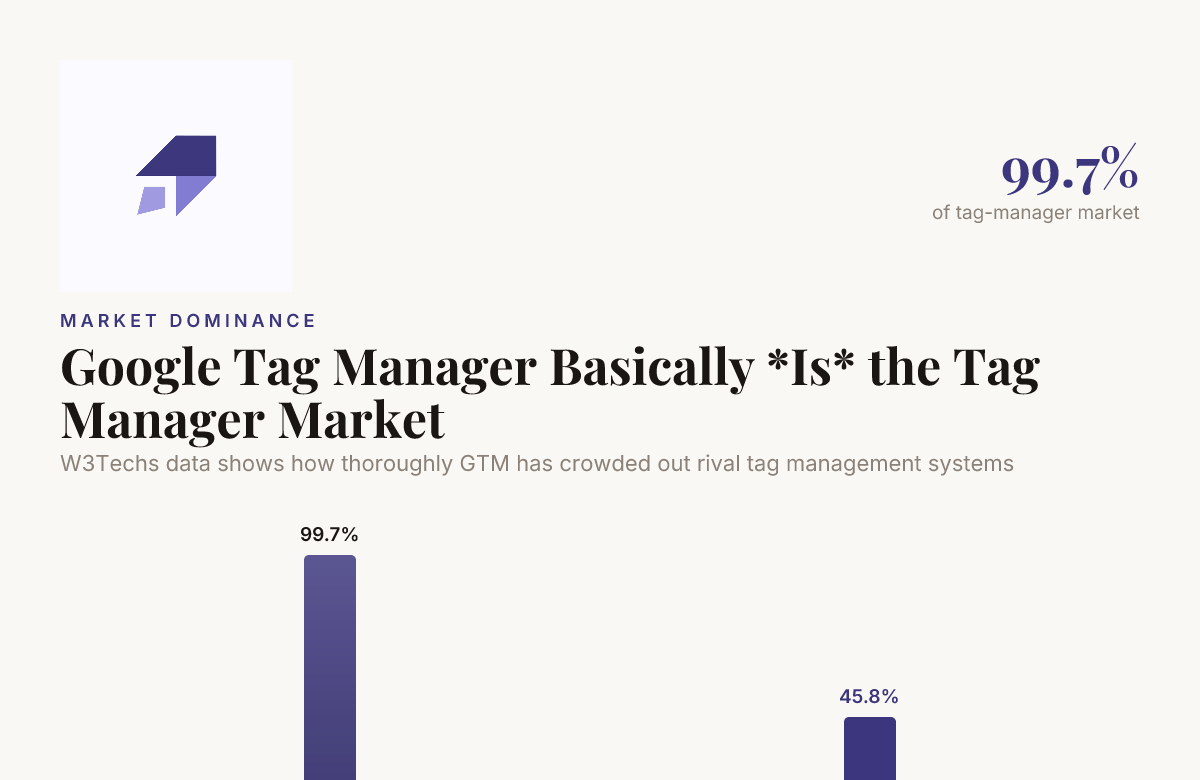
W3Techs data shows how thoroughly GTM has crowded out rival tag management systems
Why Google Tag Manager Matters for B2B Marketing Team Autonomy and Data Quality
Here’s the honest truth about B2B marketing: your sales cycle is long, your buyer journey is layered, and your data has to be clean enough to trust when it reaches your CRM. A messy tag setup doesn’t just create bad reports. It creates bad decisions.
Marketing team autonomy is the real prize here. When your team can build and test a new tag without a developer sprint standing in the way, you move at the speed your digital analytics program actually needs.
Consent tools, chat widgets, remarketing pixels, form trackers, CRM hooks, heatmap scripts. Consolidating all of that inside a single GTM container isn’t just convenient. It’s how you protect data quality at scale.
Google Tag Manager Setup: Your First Container Walkthrough
Setting up your first container doesn’t require a computer science degree. It requires a plan, and about an hour of focused work.
- Create your account and container at tagmanager.google.com, choosing “Web” as your target platform.
- Install the container snippet in your site’s header and body, ideally with the help of whoever manages your CMS.
- Set up your GA4 configuration tag so basic pageviews start flowing immediately.
- Build a trigger for your key conversion event, such as a demo request form or a “Contact Sales” button click.
- Add a data layer variable to capture form details you’ll want to hand off to your CRM.
- Preview and test using GTM’s built-in debug mode before anything goes live.
- Publish your container only after every tag fires exactly the way you expect.
This is a realistic Google Tag Manager setup, not a theoretical one. Every step above maps to something a B2B marketer actually needs on day one: visibility into who’s converting, and why.
Real B2B Use Cases: Forms, Demo Requests, Scroll Tracking, and CRM Handoff
Abstract explanations only go so far. Here’s where Google Tag Manager earns its keep in an actual B2B environment.
- Form submissions: Track every gated content download or newsletter signup as a distinct event, not a generic “conversion.”
- Demo requests: Capture form field values (company, role, use case) as variables and pass them straight into your CRM handoff, so sales sees context, not just a name and email.
- Scroll and engagement tracking: Fire triggers at 25%, 50%, 75%, and 90% scroll depth on your pricing or case study pages to understand where prospects lose interest.
- CRM handoff: Use GTM to sync UTM parameters, campaign source, and first-touch data into hidden form fields, so your CRM record tells the full story of how that lead arrived.
Every one of these is achievable with the right tags, triggers, and variables working together.

Common Google Tag Manager Mistakes to Avoid
We’ve seen every version of a tag manager gone sideways. Here are the mistakes that come up again and again.
- Duplicate tags: A GA4 tag added directly to the page code and then again inside GTM, doubling every pageview and event.
- Hardcoded IDs alongside GTM: Analytics or ad pixel snippets pasted straight into the template while the same tag also lives in the GTM container.
- No naming convention: Tags labeled “Tag 1,” “Tag 2 copy,” and “test – delete later” that never got deleted.
- No environments or versioning: Publishing straight to the live container with no staging environment and no way to roll back a bad change.
- Forgetting consent: Firing marketing and analytics tags before a visitor has made any privacy choice at all.
Any one of these quietly corrupts your data. Together, they can make an entire quarter of reporting unreliable.
GTM Best Practices for Naming, Environments, and Versioning
Adopting a few GTM best practices early saves hours of cleanup later.
- Name everything consistently. Use a pattern like [Type] – [Purpose] – [Destination], for example “Event – Demo Form Submit – GA4.”
- Use folders to group tags by purpose (Analytics, Advertising, CRM, Consent).
- Build a workspace and testing habit. Never publish without previewing the change first.
- Version every publish with a clear description of what changed, so you can roll back cleanly if something breaks.
- Set up separate environments for testing versus production wherever your workflow allows it.
These aren’t bureaucratic extras. They’re the difference between a container your whole team can trust and one only a single person understands.
Google Tag Manager and Consent Mode v2 for Privacy Compliance
Privacy regulation isn’t slowing down, and Consent Mode v2 is now the standard way Google expects sites to handle it. In practice, it means your tags adjust their behavior based on the consent state a visitor actually grants, rather than firing blindly.
With Consent Mode v2 configured inside your container, GTM checks consent status before allowing analytics or advertising tags to fire fully. Visitors who decline cookies still generate modeled, privacy-respecting signals instead of a total data blackout.
For B2B sites collecting demo requests and gated content downloads, this matters twice as much. You’re gathering personal business information, and your consent banner needs to talk directly to your GTM container, not sit disconnected from it.

When to Graduate to Server-Side Tagging
Client-side GTM handles the vast majority of B2B tracking needs. But there’s a point where server-side tagging starts making sense.
- Your page speed is suffering from too many third-party scripts loading in the browser.
- Ad blockers are stripping out a meaningful share of your tracking, and you need a more resilient path for first-party data.
- You’re handling sensitive data that shouldn’t travel through the browser at all before reaching your CRM or ad platforms.
- You’re managing multiple domains or subdomains and need centralized control over what data leaves your server.
Server-side tagging routes tag requests through your own server (or a Google Cloud instance) before they reach their destination. It’s a bigger technical lift, and it’s not the first step for most B2B sites. But once your tracking needs mature past what a browser-based GTM container can handle cleanly, it’s the natural next stage.
Conclusion
So what is Google Tag Manager, really? It’s the control panel that gives your marketing team the autonomy to track what matters, without a developer standing between you and your data.
Get the container, tags, triggers, and variables model right. Understand the GTM and GA4 relationship clearly. Follow GTM best practices from day one. Configure Consent Mode v2 properly. And know when server-side tagging is the right next step, not the first one.
That’s the roadmap. If you’d rather have a partner walk through your Google Tag Manager setup with you, from clean naming conventions to a properly wired CRM handoff, our SEO and analytics consulting team is ready to have that conversation. Reach out to us here and let’s get your tracking working the way it should.
Frequently Asked Questions
What is a Google Tag Manager container?
A GTM container is the workspace inside Google Tag Manager that holds all the tags, triggers, and variables for a specific site or domain. It’s published as one unit, and it’s what you install on your website through a snippet of code.
Is Google Tag Manager the same thing as Google Analytics?
No. Google Tag Manager delivers and manages tracking tags, while GA4 is the reporting platform that receives that data and turns it into dashboards and reports.
Do I need a developer to set up Google Tag Manager?
You need a developer once, to place the initial container snippet on your site. After that, most tag, trigger, and variable work can be handled directly by marketing without further code changes.
Is Google Tag Manager worth it for a small B2B website in 2026?
Yes, even a small B2B site benefits, since form tracking, demo request tagging, and CRM handoff all get significantly easier to manage. The free cost and low setup effort make it worthwhile almost regardless of company size.
What is Consent Mode v2 and does my GTM container need it?
Consent Mode v2 is Google’s framework for adjusting how tags behave based on a visitor’s actual privacy consent choices. If your site serves visitors in regions with cookie consent requirements, your container needs it configured correctly.
When should a company move from client-side GTM to server-side tagging?
Server-side tagging becomes worthwhile once page speed, ad blocker interference, or sensitive data handling start outweighing the simplicity of a standard browser-based setup. Most B2B sites can run client-side Google Tag Manager for years before that threshold is reached.
What are the most common Google Tag Manager mistakes B2B marketers make?
The most frequent issues are duplicate tags running alongside hardcoded tracking IDs, no naming convention across tags, and forgetting to wire consent settings into the container. Each of these quietly damages data quality over time, even when the container looks like it’s working fine.

Founder of MarTech Stack. SEO, analytics and marketing automation.
LinkedIn