

If you’ve ever opened GA4 and wondered why your numbers feel off, you’re not alone. W3Techs puts Google Tag Manager on close to half of all websites, so the same implementation mistakes show up again and again across teams. When you’re trying to connect gtm to google analytics in 2026, the clean path is to let each tool do its job, then verify everything before you trust your reporting.
Key Takeaways
gtag.js and reduces drift- Question: What does GTM do vs what GA4 does?
Answer: GTM manages and fires tags, GA4 receives and reports events. The clean approach is google tag manager ga4 configuration in GTM, not hardcoded scripts in the theme. - Question: Why do we see double-counting when both theme code and GTM exist?
Answer: Both setups can fire the same page_view or conversion event. If you already use GTM, remove duplicate GA code from the theme and keep GA4 collection centralized in GTM. - Question: How do we avoid breaking conversion tracking after a UI redesign?
Answer: Use data layer variables for event values instead of scraping the DOM. If you want a related governance mindset, our 2026 Technical SEO & Data Integrity Audit Checklist is a good reference point for “data first” quality.
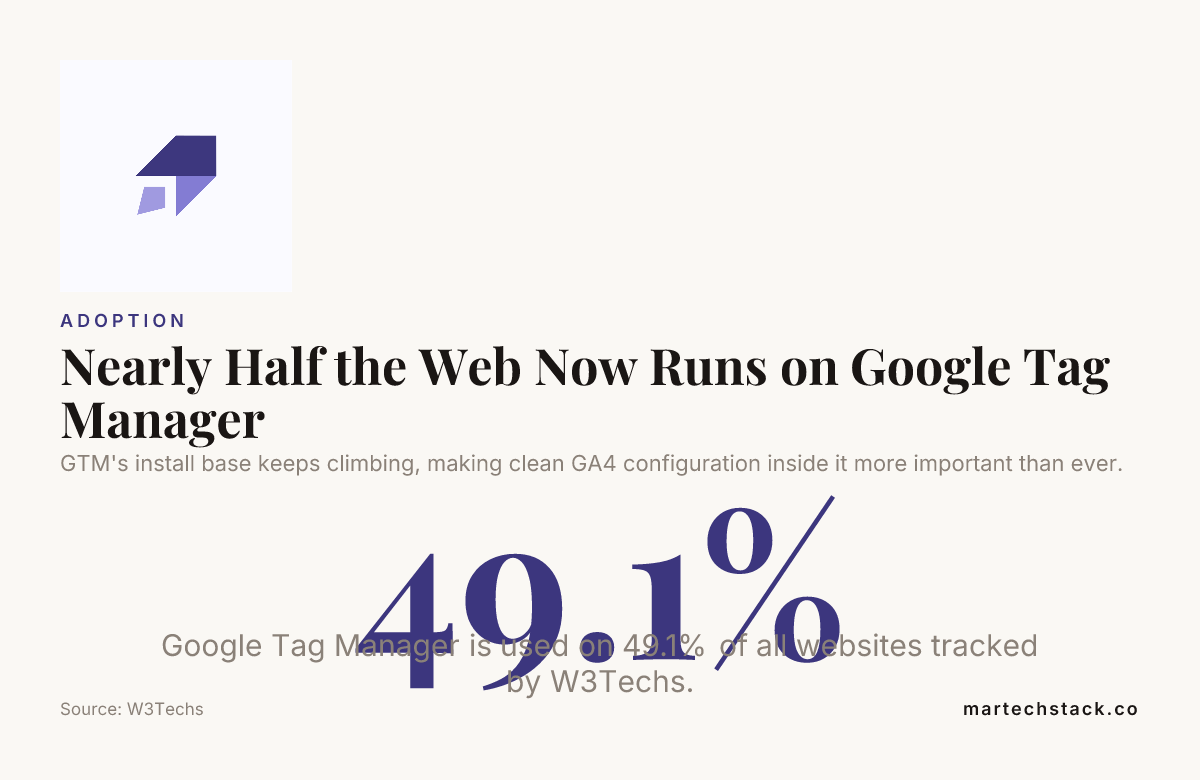
GTM’s install base keeps climbing, making clean GA4 configuration inside it more important than ever.
GTM and GA4: Different jobs, separate responsibilities
To connect gtm to google analytics cleanly, you need to stop thinking of GTM and GA4 as “two ways to send the same data.” They’re not. They’re two parts of one pipeline.
- Google Tag Manager (GTM): The “switchboard.” It loads your container, evaluates rules, and fires tags (GA4 config, event tags, pixels, etc.).
- GA4: The “analytics platform.” It receives events, applies definitions (like audiences and attribution settings), and produces reports.
That separation is why gtm ga4 setup should be consistent. GTM controls when your GA4 tags fire, and GA4 controls how those events are interpreted and stored. When you mix responsibilities (for example, hardcoding GA scripts in the theme and also running the same GA tag in GTM), you get double-counting and inconsistent parameters.
Correct GTM install: do it once, do it right
Let’s keep this practical. If your goal is google tag manager and google analytics working together correctly, install GTM exactly once and in the standard way.
- Create or open your GTM container in the GTM web interface.
- Copy the official GTM code snippet that includes:
- the
<script>for the container load, and - the
<noscript>iframe fallback.
- the
- Paste that snippet into your site template:
- the script portion in the
<head>area, - the noscript portion immediately after the opening
<body>tag.
- the script portion in the
Important: If you’re already using GA4 in the theme with hardcoded scripts, pause there. Before you add any GTM GA4 tags, remove or disable the old GA scripts so you don’t count the same page views or conversions twice.
If you’re looking at analytics setup as part of a broader measurement system, our Digital Web Analytics service outlines the typical “clean collection” approach we implement across setups.
Build the ga4 configuration tag inside GTM (not in the theme)
This is the clean core of google tag manager ga4. In 2026, the most reliable pattern is: you install GTM once, then you create a ga4 configuration tag in GTM, and let that tag handle GA4 collection.
- Create a tag in GTM: Tag type = “Google Analytics: GA4 Configuration”.
- Set the Measurement ID: Use your GA4 property’s Measurement ID (starts with
G-). - Set the trigger: Commonly “All Pages” to match page_view collection.
- Set where the GA4 settings come from: Prefer GTM variables (for consent, debug, and event parameters) rather than hardcoded values in the theme.
When we work on connect gtm to google analytics, we want GA4 to be “owned” by GTM. That makes it much easier to manage changes, test safely, and keep conversion tracking consistent.
Avoid double-counting: remove duplicate GA code and tags
If you have GTM installed and you also have gtag.js or a GA4 script in your theme, you can accidentally send duplicate events. That’s the classic double-counting problem, and it shows up most often in page_view and sometimes in conversions.
Here’s the checklist we use when diagnosing double counts in google tag manager and google analytics setups:
- Search your theme for GA4 scripts: Look for
gtag('config'or direct GA4 snippets. If they exist, decide who owns GA4:- If GTM owns GA4, remove the theme script.
- If the theme owns GA4, do not enable GTM’s GA4 configuration tag.
- Check GTM tags: Ensure only one GA4 configuration tag fires per page load.
- Confirm conversion events are not sent twice: If a form submit triggers both a GTM event tag and a theme-based event, you’ll see it immediately in event counts.
This is also where naming conventions matter. If a team can’t tell which tag is responsible for which event, you end up debugging the wrong place.
Event tracking that works: form submit, outbound click, file download
Now we get to what you actually measure. In B2B, the conversions that usually matter are things like: demo requests, contact forms, gated content downloads, and clicks to external systems (for example, calendar links).
Below are proven event patterns using GTM with gtm triggers and a clean naming system. We also assume you’ll pass values through the data layer so you’re not scraping the DOM.
1) Form submit events
- Recommended approach: Push a data layer event on submit (or on successful validation) and let GTM read it.
- Data layer event name (example):
form_submit - Event parameters (example):
form_idform_nameform_destination(optional, like “/request-demo”)
In GTM, create a tag for GA4 events (commonly Tag type “Google Analytics: GA4 Event”).
- Tag name (example):
GA4 Event - Form Submit - Trigger name (example):
DL Trigger - form_submit
2) Outbound click events
- Recommended approach: Only track when a user clicks an anchor that points off-domain, not every link click.
- Data layer event name (example):
outbound_click - Event parameters (example):
outbound_urloutbound_labeloutbound_domain
In GTM, build the gtm triggers so you’re not relying on inner text. Labels and URLs should come from the data layer.
- Tag name:
GA4 Event - Outbound Click - Trigger name:
DL Trigger - outbound_click
3) File download events
- Recommended approach: Trigger on click of files by type or URL pattern, then push a data layer event.
- Data layer event name (example):
file_download - Event parameters (example):
file_namefile_type(pdf, docx, xlsx)file_urlcontent_category(optional)
- Tag name:
GA4 Event - File Download - Trigger name:
DL Trigger - file_download
We like this approach because it ties conversion tracking to actual user intent, while the data layer keeps event parameters stable through UI changes.
If you want the measurement mindset behind this kind of work, our Data Analysis page covers how we turn event data into business insights, not just dashboards.
Use data layer variables, not DOM scraping
For conversion tracking that survives redesigns, the rule is simple: don’t scrape the DOM. Use data layer variables and read them inside GTM.
DOM scraping looks convenient in the moment, but it breaks in the real world:
- CSS changes alter selectors
- React or similar frameworks re-render elements
- Marketing swaps button labels and your “label” event value becomes wrong
With the data layer approach, you control the contract. GTM just reads fields you already defined.
In GTM, create variables like:
- Variable name (example):
DLV - form_id - Variable name (example):
DLV - form_name - Variable name (example):
DLV - outbound_domain - Variable name (example):
DLV - file_type
Then use those variables in your GA4 event parameters.
Naming conventions that survive team turnover
Tag names, trigger names, and variables should be readable six months from now by someone who did not build the container. That is how you keep gtm ga4 setup maintainable and keep gtm triggers from turning into tribal knowledge.
Here’s a naming system we use:
- Prefix by type:
GA4 Event - ...DL Trigger - ...DLV - ...GA4 Config - ...
- Prefix by scope (optional but helpful):
[Web],[LeadGen],[Content] - Keep event names aligned with GA4: Use the same event naming pattern everywhere, for example:
form_submitoutbound_clickfile_download
We also recommend you maintain a single “tag map” document that lists:
- GA4 event name
- GTM tag name
- Trigger name
- Required parameters and their data layer fields
If you keep that mapping updated, you reduce the time it takes to handle new forms, new downloads, or new outbound destinations.
Preview and verification: gtm preview mode, then ga4 debugview
This is how you validate in a way that doesn’t rely on vibes. If you want reliable google tag manager and google analytics results, your verification flow should be consistent every time.
-
Use gtm preview mode:
- Publish changes to a test container environment if you use one.
- Open your site in the preview mode window.
- Perform the user action (submit form, click outbound link, download file).
- Confirm the correct GA4 event tag fires once (and only once).
-
Validate in ga4 debugview:
- Open GA4 DebugView for the property.
- Confirm your event name (example:
form_submit) appears. - Confirm parameters like
form_id,outbound_domain,file_typeexist and match expected values.
If events appear in GTM preview mode but not in GA4 DebugView, the issue is usually configuration (wrong Measurement ID, consent gating, incorrect tag type, or event parameter mapping). If events appear twice, you likely still have duplication between theme code and GTM or a trigger that fires more than once.
Consent mode considerations in 2026
Consent mode changes how your tags should behave when consent is not granted. In a clean gtm ga4 setup, you should design for consent from the start, not as an afterthought.
Here are common consent-mode gotchas we see:
- Events firing before consent updates: If your tags fire immediately but consent state is still unknown, you may collect more than intended.
- Inconsistent behavior across tag types: Page_view may behave differently from conversions if your configuration is not uniform.
- Debug confusion: In gtm preview mode, consent settings can differ from real browser behavior.
How we handle it:
- Use consistent consent settings for the GA4 configuration and the GA4 event tags.
- Test at least two scenarios:
- consent granted
- consent denied or default restricted
- Verify in ga4 debugview that event collection matches the consent state you expect.
If consent is in place on your site today, map your current cookie banner behavior to how GTM should gate GA4 tags. Our guide to Google Consent Mode v2 goes deeper on staying compliant without losing conversion data.
Validation checklist before you trust the data
You’re ready to trust google tag manager and google analytics only after you pass a short checklist. Here’s the one we recommend before you start making decisions from conversion tracking.
- Single ownership: GA4 configuration runs from the ga4 configuration tag in GTM, not also from theme code.
- No duplicate firing: In gtm preview mode, each conversion action triggers exactly one GA4 event tag.
-
Events arrive in DebugView: In ga4 debugview, event names match what you built (example:
form_submit). - Parameters are present: Your data layer variables resolve to correct values (form_id, outbound_domain, file_type).
- Triggers are scoped: Outbound clicks track the intended destinations, not every link.
- Consent test passes: Under denied and granted scenarios, behavior matches your consent expectations.
Once those are true, you can safely connect analysis and reporting workflows, including dashboards and deeper data work. If you need help turning raw event data into clearer reporting, our Digital Web Analytics and Data Analysis services are built around measurement quality, not just tag implementation.
Conclusion
Getting google tag manager and google analytics working cleanly in 2026 comes down to ownership, precision, and verification. Install GTM once, configure GA4 using the ga4 configuration tag inside GTM, avoid double-counting by removing duplicate GA code from the theme, and build conversion tracking with gtm triggers that read values from the data layer. Then prove it with gtm preview mode and confirm delivery in ga4 debugview, including consent mode behavior. The goal is simple: results you can actually measure, not a tracking setup that “mostly works.”
Frequently Asked Questions
How do I connect gtm to google analytics without double counting in 2026?
Use GTM to own GA4 collection, meaning your google tag manager ga4 setup should include a ga4 configuration tag in GTM, and you should remove or disable any GA4 scripts in your theme that also fire page_view or conversions. Then verify each conversion action in gtm preview mode and confirm the single event arrival in ga4 debugview.
Should I use gtm preview mode or GA4 DebugView to confirm conversion tracking?
Use both. gtm preview mode tells you whether your gtm triggers and event tags fired, while ga4 debugview confirms GA4 received the correct event names and parameters for your conversion tracking.
What is a ga4 configuration tag in GTM, and why does it matter for google tag manager ga4?
The ga4 configuration tag is the GTM tag type that sends your GA4 Measurement ID into GA4 and sets up baseline behavior for the property. Keeping it inside GTM is the clean way to connect gtm to google analytics and prevents drift that happens when scripts are hardcoded in the theme.
How do I send event data using data layer instead of scraping the DOM?
Push structured values into the data layer when a user action happens, like form_submit, outbound_click, or file_download. In GTM, use data layer variables to populate GA4 event parameters so your conversion tracking keeps working after UI changes.
What events should we track first for B2B conversion tracking with google tag manager and google analytics?
Start with the events that represent intent you can act on, typically form submit, outbound click, and file download. Build them with clear gtm triggers and consistent event names so your reporting stays stable as you add more conversion paths.
Does consent mode affect google tag manager ga4 event delivery?
Yes. Consent mode can gate collection depending on consent state, so your GA4 tags in GTM must be configured to match expected consent behavior. Always test both consent granted and denied scenarios, then confirm the results in ga4 debugview.

Founder of MarTech Stack. SEO, analytics and marketing automation.
LinkedIn